


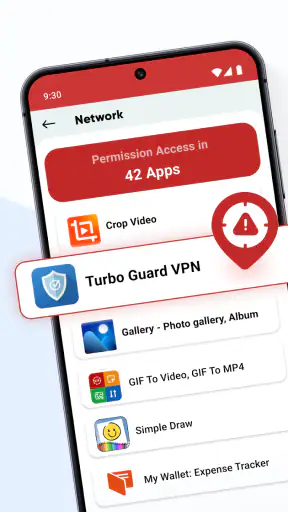
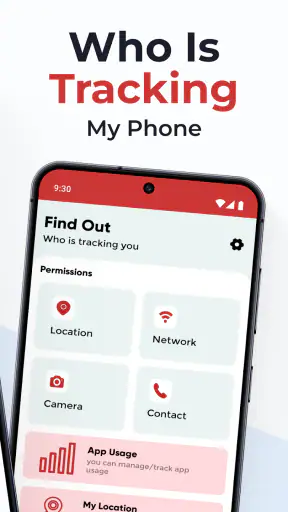
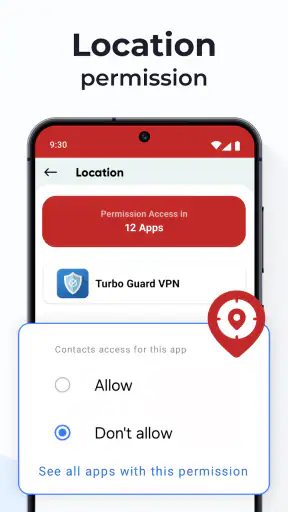
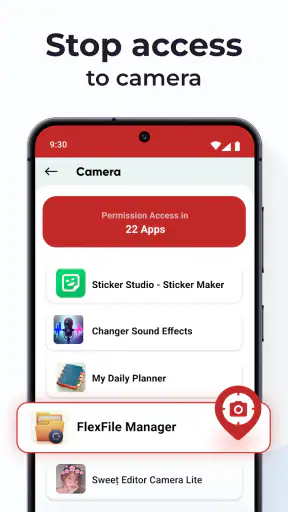
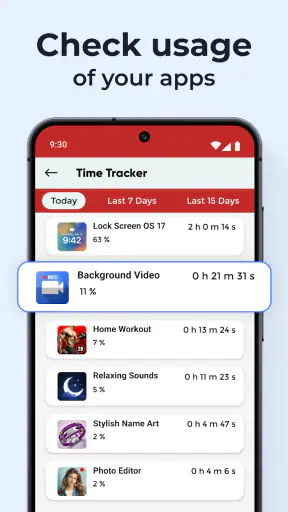
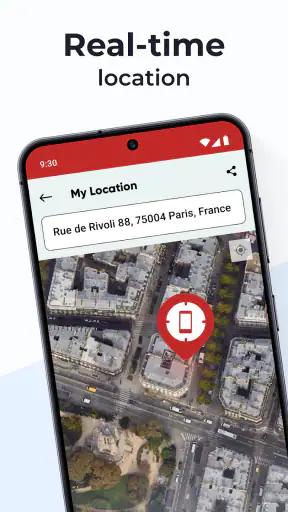
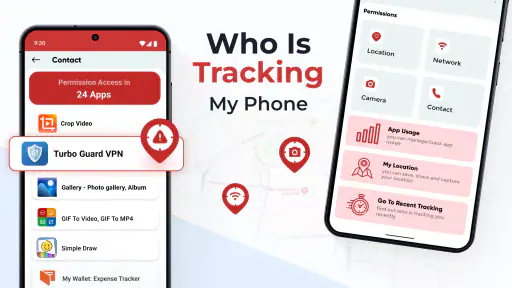
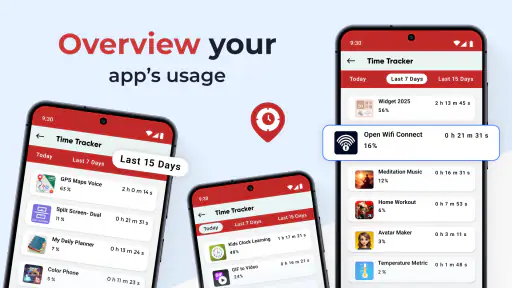
When I install a privacy tool, I want it to answer a practical question quickly: which installed apps deserve another look, and what can I do about them? Who Is Tracking My Phone? is built around that concern. It is a free Android tools app from GeniusTools Labs that focuses on reviewing app permissions and helping me manage permissions that may be unnecessary. That makes it more useful as a permission-audit companion than as a complete security suite.
My first impression is that the app is aimed at people who feel their phone has accumulated too many apps and too many access requests. It is not trying to replace every privacy control in Android. Instead, it gives the permission question a more approachable starting point: inspect what installed apps can access, decide whether that access still makes sense, and clean up where appropriate.
The app is available to users rated Everyone, works from Android 8.0 onward, and is currently at version 2.2.3. It has passed the one-million-install mark and holds a 3.9 average from around 3.7 thousand ratings. Those figures suggest that it has found a broad audience, although the rating also tells me to approach it as a practical utility with some rough edges rather than a flawless privacy authority.
How I Decide Whether a Permission Tool Is Worth Keeping
The useful question is not simply “is this permission dangerous?”
A permission only makes sense in context. A navigation app asking for location is easy to understand, while a flashlight asking for the same access deserves more thought. The difficulty is that many people do not remember why they approved a request months ago, and they may not notice when an old app remains installed after they stop using it.
That is where this app has a sensible role. I use it as a review layer between installing an app and blindly accepting every request. The important habit is to look at the app’s purpose, the permission involved, and whether I actively use the related feature. A tool that helps me see those relationships is more valuable than one that simply displays alarming labels without context.
I also judge a permissions app by how safely it handles decisions. The best workflow should leave the final choice with me. Revoking access can affect notifications, media uploads, location functions, or sign-in behavior, so I would never treat a warning as an automatic instruction. The strongest use of this app is informed cleanup, not one-tap panic.
What I check before making a change
My preferred approach is to begin with apps I no longer recognize, no longer use, or installed for a single short-term purpose. Those are better candidates for removal or permission review than an app I depend on every day. I then examine sensitive access one app at a time instead of changing everything together.
This matters because a broad cleanup can create confusing side effects. If several apps lose access at once, it becomes difficult to know which change caused a feature to stop working. A slower pass gives me a clear before-and-after picture and makes it easier to restore a setting when necessary.
A second useful habit is to repeat the audit after installing a group of new apps. Permission choices are easy to forget when setup screens arrive one after another. Reviewing the phone immediately after that installation session turns the app into a kind of digital housekeeping checklist rather than something I open only after suspecting a problem.
Privacy visibility is different from proof of misuse
This distinction is important for anyone considering the app. Seeing that an application has access to a certain part of the phone does not automatically prove that it is abusing that access. The permission screen shows capability, not intent or a complete history of what happened.
I therefore treat the results as prompts for investigation. If an app has a permission that does not match its purpose, I check whether I still need the app, whether the feature depends on that access, and whether Android offers a more limited setting. This mindset keeps the tool useful without turning every permission into a security emergency.
Where this app wins over ordinary Android settings
Android already includes permission controls, so the obvious question is why I would install another tool. The advantage here is the focused experience. Instead of remembering where every permission menu lives, I can approach the phone from the specific concern of tracking and unnecessary access.
That focus is particularly helpful for less technical users. Android settings are powerful, but their organization can vary by device maker and system version. A dedicated app can make the review feel more intentional and less like searching through unrelated menus. For someone who has never performed a permission audit, that reduction in friction may be the main reason to try it.
It also works well as a conversation starter. If I am helping a family member who installed many apps over time, asking which apps should be allowed to reach sensitive information is easier than explaining every Android settings category first. The app gives the discussion a concrete subject: installed applications and their access.
A realistic everyday cleanup session
Imagine buying a new phone, restoring old apps, and adding several services for travel, shopping, work, and entertainment. A few weeks later, the phone contains applications that were used once, along with apps whose purpose is no longer obvious. I would open this tool during a quiet moment, review the installed list, and separate the apps into three groups: keep as-is, keep but review, and remove.
For the second group, I would inspect permissions individually. A shopping app that needs access only while I am using a particular function may not need permanent access. An old utility that I never open again may not deserve any access at all. After each change, I would open the app I rely on and test its main function before moving to the next one.
This workflow is more valuable than a dramatic one-time purge. It creates a repeatable routine and reduces the chance of breaking something important. The app becomes a practical assistant for decisions I might otherwise postpone.
Three less obvious ways I would use it
First, I would use it before lending my phone to someone else for an extended period. I would review apps that contain personal information and check whether unused applications still have access that serves no current purpose. This does not replace a separate user profile or device lock, but it can reduce unnecessary exposure during a temporary handoff.
Second, I would use it after testing an app that I already suspect I will uninstall. Temporary apps often receive permissions during setup, and uninstalling is not always the first thing people remember to do. A quick review before removal helps me understand what I approved and prevents a short experiment from quietly becoming a permanent part of my phone’s privacy footprint.
Third, I would use it to compare permission needs among apps that perform similar tasks. If two applications offer roughly the same kind of service but one asks for access that seems unrelated, that difference becomes part of my choice. This does not prove that one app is safer, but it gives me a concrete reason to prefer the less intrusive option when the everyday experience is otherwise similar.
Small frictions I would expect
The app’s usefulness depends on how clearly it explains what I am seeing. Permission management can become confusing when labels are presented without enough context, especially for people who do not know the difference between access that is needed only during use and access that may remain available more broadly. I would still verify important changes in Android’s own settings rather than relying on a third-party screen alone.
Another limitation is that a permission audit cannot answer every privacy question. It does not turn an unfamiliar app into a trusted one, and it cannot make a poor installation decision disappear. If my concern is malware detection, account compromise, network behavior, or data handling outside the permission model, I would look for a different type of security product as well.
There may also be moments when the app feels like an extra step. Experienced Android users who already know their device’s settings may prefer to manage permissions directly. For them, the separate interface may not save enough time to justify keeping another tool installed.
When Android’s built-in controls are the better alternative
If I have only a few apps and I am comfortable navigating system settings, Android’s own controls are the simplest option. They are already part of the phone, so there is no additional app to maintain and no need to switch between interfaces. For a quick change to one known application, the built-in route is often faster.
The system settings are also the place I would go when I need the final authority over a permission. A third-party utility can help me find an issue, but the operating system remains the most direct place to confirm the current state. I see this app as a guide and organizer, not as a replacement for Android’s underlying controls.
When a broader security app may fit better
Some users want one product that combines permission awareness with malware scanning, suspicious-site protection, device recovery, or account safety tools. This app is not the right choice if those broader functions are the main reason for downloading a security product. Its appeal is narrower and more focused on installed apps and their permissions.
The same applies to people who want detailed technical reporting. If I needed deep network inspection, extensive event history, or professional device administration, I would choose a tool designed specifically for that job. A simpler permission manager is easier to approach, but simplicity also means it should not be judged as a full forensic or enterprise solution.
What the free price means in practice
The app itself is free to download, which makes experimenting with a permission audit relatively low-risk. It also includes optional in-app purchases ranging from $0.99 to $99.99 per item. Because of that wide range, I would inspect the purchase screen carefully before confirming anything and decide whether the basic workflow already covers my needs.
My advice is not to pay simply because a warning sounds urgent. I would first use the available core experience, see whether it helps me identify and manage permissions, and then judge whether any optional upgrade solves a problem I actually have. A privacy tool should make its value understandable before asking me to spend money.
There is also a switching cost that is easy to overlook. Once I build a personal routine around one permission dashboard, moving to Android settings or another security app means learning a different layout and possibly repeating my review from the beginning. That cost is small for a casual user, but it matters if I manage several phones or help relatives regularly.
Who should install it
I would recommend giving it a try if you have a crowded phone, regularly install unfamiliar apps, or want a friendlier starting point for permission management. It is especially suitable for someone who understands that privacy is a series of small decisions rather than a single security switch.
It is also a reasonable choice for families and less technical users who need help identifying which applications deserve attention. The Everyone age rating and free entry point make it approachable, while support for Android 8.0 and later covers a wide range of devices.
Who should skip it
I would skip it if I rarely install apps, already manage permissions confidently through Android, or expect a complete security platform. I would also avoid treating it as the only answer to serious concerns about malware, identity theft, or data collection. Those situations call for a wider security plan and careful app selection, not just a permission review.
Users who dislike optional purchase prompts should also take the in-app purchase range into account. The free starting point is attractive, but anyone uncomfortable with upgrade screens should remain attentive during setup and use.
My recommendation after using it as a decision tool
Who Is Tracking My Phone? is most convincing when I use it for a specific job: turning a vague feeling that my phone is overexposed into a manageable list of apps and permissions to review. GeniusTools Labs has chosen a clear direction, and the one-million-plus install base shows that the idea connects with many Android users.
I would not call it an all-purpose privacy solution, and the 3.9 average reflects why expectations should stay realistic. Its value depends on my judgment, on Android’s own controls, and on whether the app presents permission information clearly enough for me to act confidently. Still, as a focused first pass through a neglected app library, it can save time and encourage better habits.
My final advice is simple: install it if you want guided permission housekeeping, then work slowly, test important apps after changes, and keep Android’s settings available for confirmation. If you need advanced security monitoring or already know exactly where every control is, choose a broader or more direct alternative. For everyone in between, this is a useful permission-audit companion, provided you treat its warnings as questions to investigate rather than automatic proof of wrongdoing.


